Fast conversion of any number of files
This professional converter quickly converts any number of email files.
Windows utility
Move mail out of Thunderbird, Apple Mail, Eudora or a Google Takeout archive and into Microsoft Outlook — folder hierarchy, attachments, Internet headers and formatting intact.
What it does
Why this tool
This professional converter quickly converts any number of email files.
Open the converter directly from the Outlook ribbon or a standalone app without launching any mail programs.
The program supports the conversion of any MBOX files from over 20 email clients: Apple Mail, Mozilla Thunderbird, Entourage, Eudora, Postbox, Netscape, PocoMail, Spicebird, Opera, PowerMail, SeaMonkey, The Bat!
Using this tool does not compromise data integrity and confidentiality. The utility accurately exports MBOX files preserving the original mailbox folder structure, Internet headers, formatting, and attachments.
The program can convert MBOX emails to an existing PST file and mark the converted messages as unread.
The utility helps you organize the message archive in the right way. You can convert MBOX emails into separate PSTs or individual folders within PST files. Automatically create new files or folders by date, by sender or recipient data, by subject, by data file name, and so on.
Perform selective conversion from MBOX to PST. For example, export emails with or without attachments. Or set a limit on the size of converted files, skipping too large ones.
When converting an MBOX file received via Google Takeout, the utility can keep the original Gmail folder structure based on labels in the final PST file. These labels can also automatically assign Outlook categories to messages.
PST files have size limitations, and it is not recommended to work with data files that are too big in Microsoft Outlook. This utility will automatically split retrieved PSTs in the specified size for your convenience and better Outlook performance.
Once the conversion is complete, the program can automatically move the processed MBOX files to another folder to avoid duplicates when converting again.
The command line app can help you import mailboxes to MS Outlook and Exchange Server. You can create complex user migration scripts and convert any number of MBOX files from different folders with this application.
Use the command line to perform scheduled conversions through the Windows Scheduler. Create flexible mail transfer and migration scenarios in any organization for any number of users.
MBOX file format is used for transferring and storing message databases in multiple email clients:
and others.
Microsoft Outlook does not use the MBOX format but stores messages and other mailbox items in its own PST file format. To make MBOX emails accessible to Outlook or Exchange Server, you must convert MBOX to Outlook PST format. Once converted, the mail database can be connected to Outlook.
You may need to export MBOX to PST to
The main reasons for switching from MBOX to PST data file:
If you need to migrate MBOX email messages directly to an existing Outlook or Office 365 mailbox, or a shared folder on the Exchange Server, use Import MBOX into Outlook to do so.
You can manually export MBOX emails and then import them to a PST format by saving individual messages in EML format.
To do this, follow these steps:

In other programs, you will need to save MBOX emails individually in .eml format. To do so, you need to open the message's source code (raw message).
2. Open the folder with EML messages. Select all and drag and drop them to the desired Microsoft Outlook folder.
3. Go to File > Open & Export > Import/Export to export the messages to an Outlook PST.
4. Click Export to a file > Next, then Outlook Data File (.pst) > Next, select the desired folder and press Next.
5. Determine the location and name of the Outlook PST file and click Finish.

This method involves many manual actions and will only fit if you need to transfer a few messages.
This free method will take too much time if you have multiple MBOX files to export.
Follow simple steps before converting MBOX to PST:
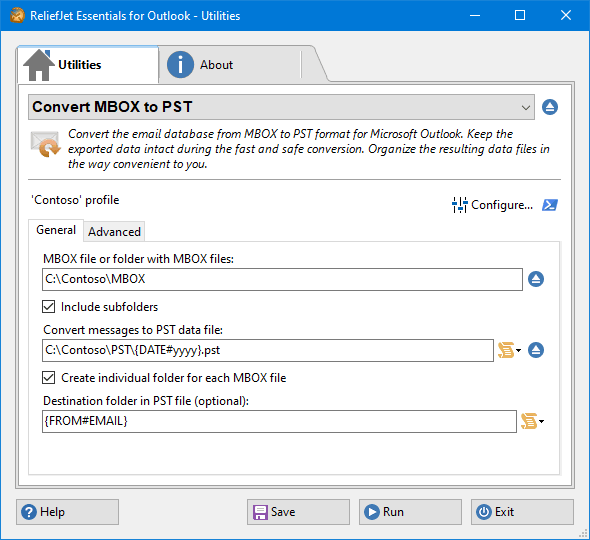
2. Select an MBOX file or a folder with MBOX files.

3. Check the "Include subfolders" box to keep the original folder structure of the MBOX files.
4. Specify the path and name of the file with the .pst extension. Alternatively, select an existing PST on your computer.
5. You can create multiple PSTs according to your preferences. Add a macro from the ready-made list to the file name before the .pst extension, as the picture shows.

6. If you are converting multiple MBOX files, you can save each to a separate folder.
7. To create separate folders within the final PSTs for convenient message storage, use the list of ready-made macros in the "Destination folder in PST file" field.
Use the enhanced settings on the "Advanced" tab.

1. Check "Add Internet headers" to save technical (full) message headers when converting.
2. If you are saving messages to an existing PST, you can "Mark converted messages as unread" to make them visible.
3. Use Google labels to assign Outlook categories to messages or maintain the original Gmail folder structure. Check the box to select the option you want.
4. Select the messages to convert: all messages, only with attachments, or only without attachments.
5. Exclude files larger than the specified size from the conversion process if necessary.
6. Specify the maximum PST size to split large files during conversion, which will save you from having to apply the PST splitting operation. Or leave it at 0 to not apply this option.
7. Specify a folder where you can move the processed MBOX files. This way, you can avoid duplicate messages when converting from the same location to the same PST file again.
8. Specify a folder for incorrect messages from a partially damaged MBOX to review and analyze them after conversion.
The professional version of the MBOX to PST converter includes a command line application that can be used for mass migration of MBOX email databases to Microsoft Outlook and Exchange Server. This tool is useful for converting a large number of MBOX files at once, as it can work with the Windows Scheduler to automate the process.
This means you can set up various migration scenarios for multiple user mailboxes, saving you time and effort. The command line application is a convenient solution for bulk MBOX to PST conversion, as it allows you to easily migrate a large number of MBOX files in a single operation. It is also a reliable option, as it can help ensure the accuracy and integrity of the data during the conversion process.
Converting MBOX emails to PST for Outlook is easy with the automatic method, compared to doing it manually. To transfer messages to Outlook PST, you just need to specify the source and destination folders and run the utility.
Alternatively, you can use advanced settings and filter the messages during the conversion process, save them in separate folders and data files, and mark the converted emails. This converter software keeps the original message properties and folder hierarchy, works with any number of large files, and uses the command line for complicated migration scripts
Local vs online
Browser-based converters ask you to hand a full mailbox to a third-party server. These are the trade-offs that come with it.
When you use an online service to convert MBOX to PST, you have to send your data to a third-party server, which could potentially expose your data to unauthorized access
Using online conversion services also puts the data of your email contacts at risk, as their information could potentially be accessed by unauthorized parties.
Free online converters often have limits on the size and number of MBOX files that can be converted at once, which can be inconvenient if you have a large number of messages to convert.
If you need to convert more MBOX files than the limits allow, you may have to pay additional fees for each conversion
Converting a large number of MBOX files online can take a long time and use up a significant amount of internet dataWe like to make people happy. We ask our clients about their birthday and prepare cool presents.
Online conversion services may not offer additional options for filtering source messages or organizing the resulting PST files.
Online services may not always be compatible with your specific email client or operating system, which can make the conversion process more difficult
Some online conversion services may not have sufficient security measures in place to protect your data from cyber threats
There is a risk that the online conversion process may result in errors or inaccuracies, which could lead to lost or corrupted data
FAQ
Yes, you can convert an MBOX archive file to PST without launching an email application. Open the utility from a separate application on your computer and select the MBOX file or folder. Fix the other settings and start the conversion.
To convert multiple MBOX files using this MBOX to PST converter, you can simply collect all of the files that you want to convert into a separate folder and specify that folder as the source when setting up the utility. This will allow you to convert all of the MBOX files in that folder at once, saving you time and effort.
If you need to convert MBOX files that are located in different folders, you can use the command line application in the professional version of the utility. This application allows you to specify the specific files or folders that you want to convert, making it easy to convert multiple MBOX files from different locations.
This utility is designed to handle large MBOX files and can convert them to PST format without any issues. The size of the resulting PST files may depend on the size of the original MBOX files and the specific conversion settings you choose, but in general, this utility should be able to handle MBOX files of any size. This MBOX to PST converter has no limit on the size or source MBOX files.
However, it's worth noting that Microsoft Outlook, the email client that uses PST files, has limitations on the size of the PST files it can import. Specifically, Outlook has a maximum file size limit of 50 GB for PST files, which means that PST files larger than this may not be able to be imported into Outlook. To avoid this issue, you can set the maximum size of the resulting PST files when using this MBOX to PST converter. This will allow you to create PST files that are small enough to be imported into Outlook, even if the original MBOX file is very large. If you set the maximum size of the PST files to be smaller than 50 GB, the converter will automatically split the resulting PST file into multiple parts if necessary, ensuring that it can be imported into Outlook without any issues.
That being said, it's worth noting that the process of converting a large MBOX file to PST format can take some time, depending on the size of the file and the speed of your computer. Additionally, you may need to have sufficient storage space available on your computer to store the resulting PST file.
Yes, it is possible to split a large MBOX file into smaller PST files when converting it using a utility. This can be useful if you have a very large MBOX file and want to break it up into more manageable chunks, or if you need to import the PST file into an email client that has size limitations on the files it can import.
For example, you might specify that you want to create multiple pst files, each with a maximum size of 10 GB. The utility will then split the MBOX file into smaller pst files, each with a size of 10 GB or less, depending on the size of the original mbox file and the number of pst files you want to create.
It's worth noting that the process of splitting a large MBOX file into smaller PST files can take some time, depending on the size of the MBOX file and the speed of your computer. However, this can be a useful way to manage large MBOX files and make it easier to import them into your email client.
Our MBOX to PST converter is a powerful and reliable tool that allows you to convert your emails from MBOX to PST format precisely as they are in your MBOX mailbox. When you use this utility, you can be confident that all of the content and formatting of your emails will be preserved, including Internet headers and attachments.
In addition, this utility is able to retain the original folder hierarchy of your mailbox when it performs the conversion. This means that all of your emails will be organized in the same way as they were in the original MBOX file, with the same folder structure and email categorization.
Yes, you can do reverse email conversion with thePST to MBOX converter.
The utility that converts MBOX files to PST format is specifically designed to allow you to import the resulting PST file into Microsoft Outlook. Outlook is a popular email client that is commonly used in businesses and organizations, and it uses the PST file format to store emails and other data.
It's worth noting that while the utility is designed to work with Outlook, it may also be compatible with other email clients that support the PST file format. This could include other Microsoft products like Windows Mail or Windows Live Mail, as well as some third-party email clients that have the capability to import PST files.
Articles
Three ways to move a Thunderbird mailbox into Outlook — IMAP relay, EML drag-and-drop and MBOX to PST conversion — with the trade-offs of each.
Export a Gmail mailbox with Google Takeout and convert the resulting MBOX archive into a PST file Outlook can open, labels included.
Move messages from a Gmail account into a Microsoft Outlook mailbox, either by connecting the account or by converting an exported archive.
Back up Gmail to your computer, an external drive or cloud storage in the format that fits — including the ones Microsoft Outlook reads.
Install on Windows, point the utility at your MBOX files, choose where the PST goes. Conversion runs locally — nothing is uploaded.