Updated 17 September 2026 · 10 min read
Import Thunderbird mail into classic Outlook
Move a complete Thunderbird mailbox into classic Outlook by converting its MBOX files to PST. You can also copy local mail through an IMAP account, or transfer a few messages as EML files.
This guide uses classic Outlook, the Windows desktop app with a File tab. The MBOX converter requires classic Outlook; the File-menu export steps below also describe that app. An MBOX file stores many email messages, while a PST is the data file that classic Outlook can open.
Do you need to convert anything?
If the required mail is already visible in your provider's webmail, add that same account to Outlook and let it synchronize. You do not need to convert Thunderbird's local cache just to read those server messages in a different app.
Check Local Folders, old POP accounts, and folders you previously archived to disk separately. Their mail may exist only in Thunderbird. Signing in to Outlook cannot retrieve those local-only messages from the server. Use MBOX conversion or the upload route for that portion of the mailbox, and keep server mail out of the conversion batch if you do not want a second copy.
Check Thunderbird's message-store type first
Before choosing a method, check how Thunderbird stores your mail. Its usual File per folder (mbox) setting puts all messages from a folder such as Inbox into one mailbox file, often without a filename extension. The alternative File per message (maildir) setting creates a separate file for every message.
Open Account Settings, select the source account's Server Settings, and read Message Store Type. Check Local Folders separately if that is where your mail is stored.
- If it says File per folder (mbox), you can convert the mailbox files directly to PST.
- If it says File per message (maildir), do not select that directory in an MBOX converter. Use the IMAP or EML route described in this guide.
Before moving anything, open Help → Troubleshooting Information → Profile Folder → Open Folder. Close Thunderbird, then copy the complete profile folder to separate storage. Also copy any Local Directory stored outside the profile. Our Local Folders backup guide shows how to find those paths. Keep these copies unchanged in case you need to start again.
Choose one of the three routes
For most complete, local Thunderbird mailboxes, direct MBOX-to-PST conversion is the shortest route. IMAP works for mail already on the server or for local messages you copy into an authorized account. EML is practical for a small selection.
Swipe or scroll to compare all columns.
| What you have | Route | Main limitation |
|---|---|---|
| A confirmed MBOX store | Convert to PST | Requires Windows and classic Outlook |
| Mail already visible in webmail | Add the same account to Outlook | Local-only folders will not appear |
| Local-only mail to move through a server | Copy through IMAP | Requires server space and time to upload and download |
| A few selected messages | Move EML files | Folder structure must be recreated by hand |
| A Maildir store | IMAP or a tested export | Maildir cannot be used as MBOX input |
Convert local MBOX mail to PST
Use this route after confirming that the source uses File per folder (mbox). The converter reads those mailbox files and creates a PST that classic Outlook can open, avoiding an upload through another mail account.
Step 1. Make the source local and complete
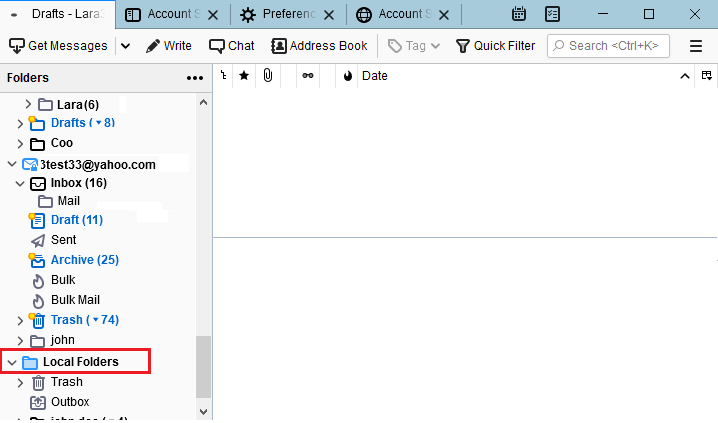
If the source is an IMAP account, make sure Thunderbird has downloaded the messages you need. One practical option is to copy the required folders into Thunderbird's Local Folders, then open a few messages and attachments before closing Thunderbird.
Step 2. Locate and copy the mbox tree
Open Account Settings → Local Folders and note the Local Directory path.
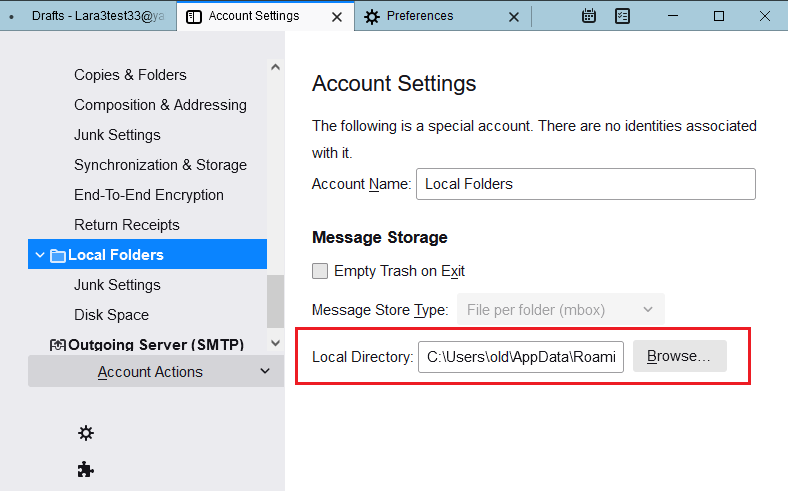
Close Thunderbird before copying the files. In a normal Thunderbird MBOX store:
- the mailbox file has the folder name and usually no extension;
- the matching
.msffile is an index, not the mailbox itself; - the matching
.sbddirectory contains mailboxes for nested folders.
Copy each mailbox file together with its .sbd directory, preserving their relative layout. Work from this copy and leave the profile backup untouched.
Step 3. Convert the copied files
Install the MBOX to PST converter. Our installer includes Convert MBOX to PST as part of ReliefJet Essentials. Open the utility from the standalone ReliefJet Essentials launcher or from the ReliefJet tab in classic Outlook.
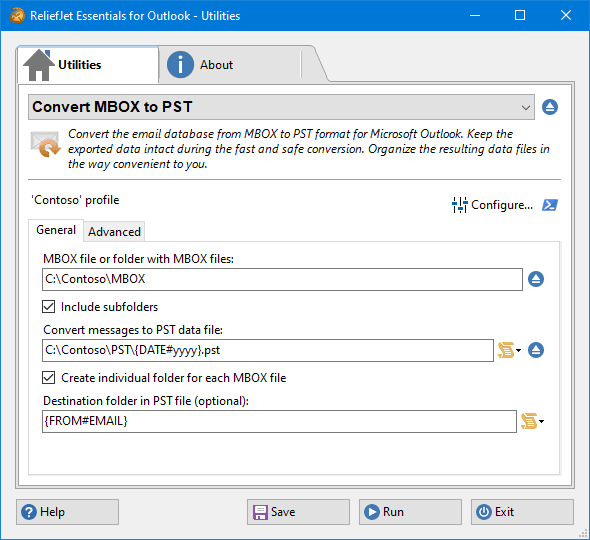
- Select the working folder that contains the copied mailbox files.
- Enable Include subfolders to process nested source folders.
- Choose a path and filename for the new PST.
- If the mailbox is large, set a practical maximum PST size.
- Click Run and keep the conversion report.
Skip files greater than refers to an entire source MBOX file and uses KB. It does not filter individual messages or attachments. Leave it at 0 if you do not want to exclude any source file.
Step 4. Open and verify the PST
In classic Outlook, choose File → Open & Export → Open Outlook Data File. Check the folder tree, an old and a recent message, and several attachments. Keep the Thunderbird backup until the PST passes these checks and you have copied it to separate storage.
Copy local mail through an IMAP account
IMAP is the standard method mail apps use to keep messages synchronized with a mail server. In this route, Thunderbird uploads copied messages to an IMAP account and Outlook downloads them from the same account. Because the account stays synchronized, copy messages rather than moving or deleting them.
Step 1. Add the IMAP account to Thunderbird
Open Thunderbird's account setup, enter the account address, and choose IMAP. Complete the provider's browser sign-in when it appears.
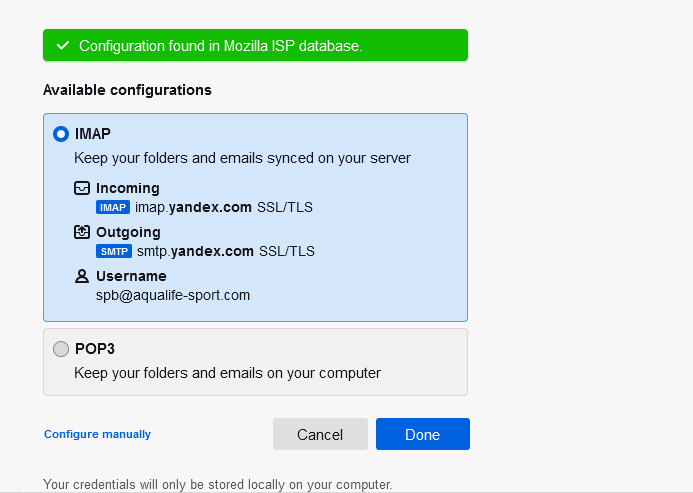
For personal Gmail accounts, IMAP has been permanently enabled since January 2025, so current settings no longer show an Enable IMAP switch. Choose Sign in with Google. An app password is only a fallback for an older client that cannot use Google's sign-in window.
Step 2. Copy mail to the IMAP account
Create a clearly named folder under the IMAP account. In each Thunderbird source folder, select the messages, choose Copy To, and select that destination.
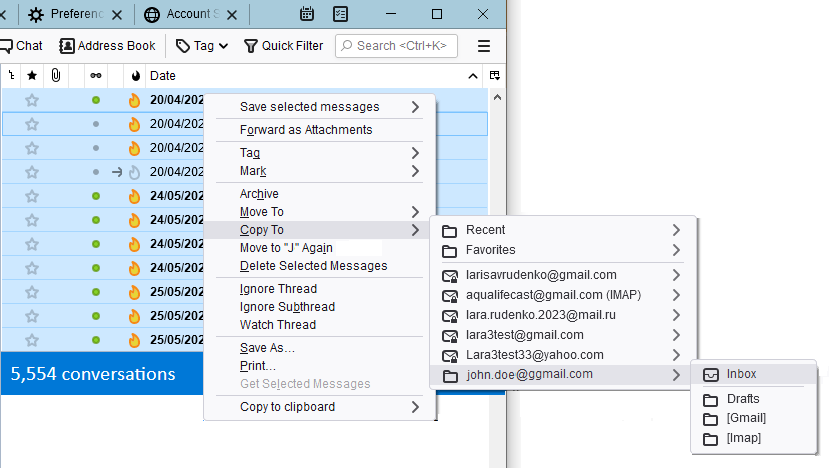
Copy manageable batches and wait for Thunderbird to finish uploading each one. Check the messages in the provider's webmail before continuing. The provider's storage quota and attachment-size limits still apply.
Step 3. Add the same account to classic Outlook
In classic Outlook, choose File → Add Account or File → Account Settings → Account Settings → New. Select the provider account and complete its browser sign-in.
The screenshot below shows an older account dialog. For Google accounts, use the current Google sign-in window rather than entering a password into the fields shown here.
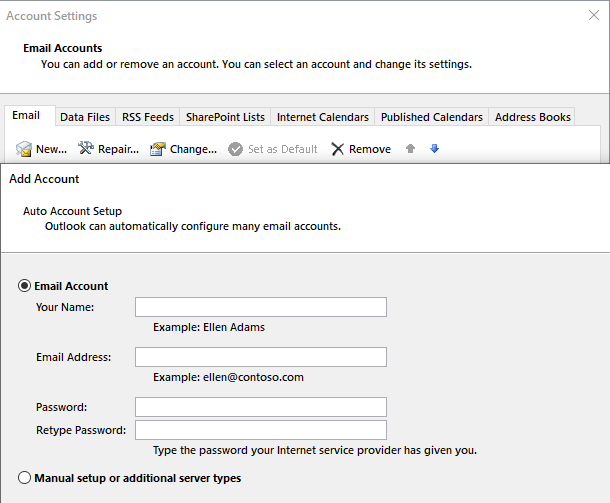
Use an app password only when the provider requires two-step verification and your Outlook version cannot complete the modern sign-in flow.
Step 4. Wait for Outlook to finish
Choose Send/Receive All Folders and leave Outlook open until it has downloaded the copied folders.
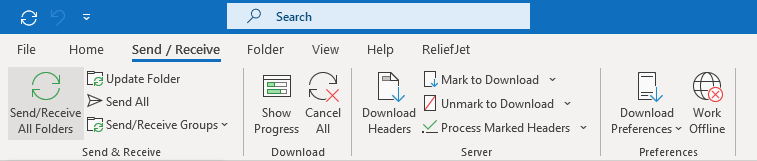
Open an older message and an attachment while the computer is offline. If both open, the content is stored locally. To make a PST, choose File → Open & Export → Import/Export → Export to a file → Outlook Data File (.pst).
Move selected mail as EML
An EML file contains one email message. This route does not need an intermediate IMAP account, but it loses the automatic folder structure and is awkward for a large mailbox. Outlook's EML drag-and-drop support also varies by version, so try a few messages first.
Step 1. Export messages from Thunderbird
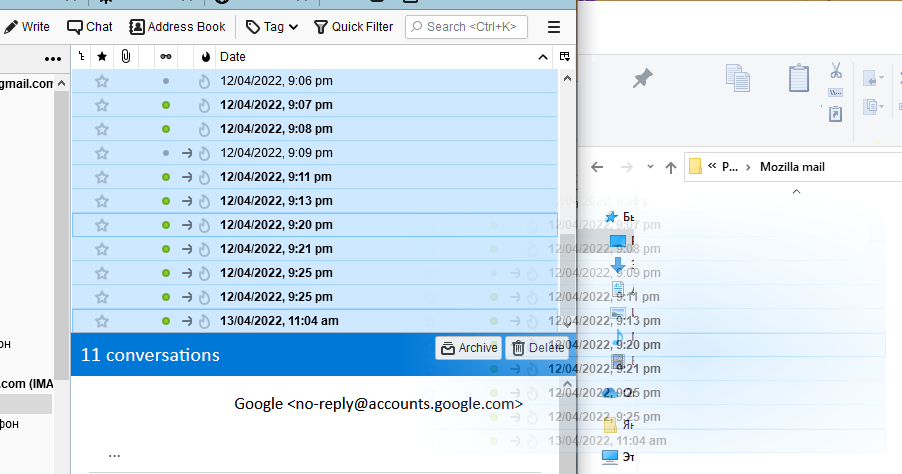
Open a Thunderbird folder, select the messages, and use Save As or drag them to a folder on disk. You should see one .eml file for each message.
Step 2. Move the EML files into Outlook
Create the matching destination folder in classic Outlook, then drag in a small batch of EML files. Verify that new items appear inside the destination mail folder, rather than just opening an EML window or attaching files to a draft. Then open several imported items and check their sender, date, body, and attachments. If dragging does not create mailbox items, stop and use another route.
Repeat this for every Thunderbird folder you want to keep. The EML files do not carry the Thunderbird folder tree, so you must recreate that tree in Outlook. Smaller batches are easier to retry if either app stops responding.
Why are Thunderbird folders or messages missing in Outlook?
Start with one missing message whose sender, date, and subject you know. Find it in Thunderbird, identify the folder that actually contains it, and trace that folder through the chosen route. A search result or unified Inbox can show mail from several accounts; it does not identify one source mailbox file.
| What you see | What to check next |
|---|---|
| Outlook has the account but none of Local Folders | Local Folders do not upload automatically. Convert their MBOX files or copy the messages into an IMAP folder. |
| Inbox arrived but nested folders did not | Check that the copied source includes the matching .sbd directories and that Include subfolders is enabled. |
| A large source folder was omitted | Check the conversion report and Skip files greater than. That setting excludes whole MBOX files. |
| Subjects appear but bodies or attachments do not | Complete the source download and test messages offline before making a new working copy. |
| The message appears twice | Check whether you both synchronized the server folder and converted its local copy. Keep the original backup while comparing the two. |
What transfers besides email?
MBOX conversion moves messages and their attachments, not Thunderbird's complete application profile. Account passwords, add-ons, filters, address books, and calendar subscriptions need separate setup. Keep the profile backup even after Outlook can read the PST; it contains settings that the PST cannot replace.
Move contacts separately
These routes move email only. Export the Thunderbird address book as CSV. In classic Outlook, use File → Open & Export → Import/Export → Import from another program or file → Comma Separated Values, select a Contacts destination, and map the fields. Try a few contacts first, especially names with accents and entries with several email addresses. A multi-contact vCard file needs a different import route; it is not interchangeable with CSV in this wizard.
If you use Thunderbird on a Mac or Linux computer, copy the confirmed MBOX source to a Windows computer that meets the converter requirements. Installing new Outlook alone does not supply the classic Outlook components this converter needs.
Can you use new Outlook instead?
For server mail, check whether new Outlook can connect to the original account. For MBOX conversion with this utility, use classic Outlook on Windows. Microsoft also documents bulk EML import in new Outlook, a separate option for messages already saved as EML; review its file-size and folder limits before choosing it. Opening an EML message is different from importing it into a mailbox.
Which route to choose
Choose direct conversion for a complete MBOX mailbox, IMAP to synchronize existing server mail or upload local messages through an authorized account, or EML for a small selection. The PST verification checklist covers folder counts, message content, and exceptions.
For a restoration test before migration, use backing up and restoring Thunderbird Local Folders. To inspect the archive without Outlook, see reading MBOX locally.
Primary sources
- Microsoft: CSV contact import and field mapping
- Mozilla: Thunderbird profiles
- Mozilla: Maildir in Thunderbird
- Google: Gmail in another email client
FAQ
How do I move a whole Thunderbird mailbox?
If Thunderbird stores the account as File per folder (mbox), close Thunderbird, copy its mailbox files and convert the copies to PST. For File per message (maildir), use the IMAP or EML route described in this guide; do not send a Maildir directory to an MBOX converter.
Does Thunderbird always store mail as MBOX?
No. It can store a whole folder in one MBOX file, or save each message separately as Maildir. Check Account Settings → Server Settings → Message Store Type to see which format your account uses.
Where are Thunderbird MBOX files?
Find Local Directory in the account’s server settings. With MBOX storage, files such as Inbox usually have no extension. Copy them and their matching .sbd subfolders after closing Thunderbird. Files ending in .msf are indexes, not mailboxes.
Can I move Thunderbird contacts with the mailbox?
Contacts are not included in MBOX files. Export the Thunderbird address book as CSV and use the CSV import wizard in classic Outlook. Map the fields and check a small sample before importing the full address book.
Are attachments transferred too?
Yes. MBOX conversion transfers attachments with their messages. Open a few documents and photos in the finished PST to check the result. If you use account synchronization instead, your email provider’s storage and attachment limits also apply.
Do I need a converter if Thunderbird mail is still on the server?
No. If the required messages are visible in webmail, add the same account to Outlook and let it synchronize. Check Thunderbird Local Folders and old POP mail separately: local-only messages need their own transfer.
Keep reading
Related guides
Import an MBOX archive into a Microsoft 365 mailbox
Convert MBOX to PST, check your email in Outlook, then import it into your Microsoft 365 mailbox and confirm it arrived in webmail.
Move Yahoo Mail into Outlook and keep a separate backup
Connect Yahoo Mail to Outlook with current sign-in, check synchronization, export a separate PST in classic Outlook, and distinguish backup from a mailbox migration.
Restore Gmail messages from a Google Takeout MBOX backup
Import a Takeout MBOX into Thunderbird Local Folders, copy a test batch to Gmail through IMAP, and check restored messages, labels and duplicates in webmail.
Open your MBOX email in Outlook
Download the Windows converter and try it with a copy of your mailbox. You will need classic Outlook installed on the same computer.