Updated 15 September 2026 · 8 min read
Export Gmail to an Outlook PST file
Add your Gmail account to classic Outlook, let the required messages download, then export them to a PST file that you can open later in Outlook.
This route is for mail that is still available in a Gmail account. It uses classic Outlook, the Windows desktop app with a File tab, and follows its File-menu export wizard.
Choose IMAP or Google Takeout
IMAP keeps a mail app synchronized with the messages on a mail server. Adding Gmail to Outlook through IMAP lets Outlook download the live mailbox and then export that local copy to PST. Google Takeout instead gives you an MBOX archive first; an MBOX is a mailbox file that must be converted before classic Outlook can open it.
Swipe or scroll to compare all columns.
| What matters to you | IMAP, then Outlook export | Takeout, then MBOX conversion |
|---|---|---|
| Source | A Gmail account you can sign in to | A new or previously saved Takeout download |
| Internet connection | Needed until Outlook finishes downloading | Needed only to request and download the archive |
| Main completeness check | Required folders and full messages are available offline | Every archive part is downloaded and extracted |
| Gmail labels | Appear through Outlook's IMAP folder view | Can be mapped from the exported label information |
IMAP remains connected to Gmail, so moving or deleting synchronized messages in Outlook may also change the Gmail account. Create and check the separate PST before changing any live mail. If you prefer to work from downloaded files, use the Google Takeout guide.
Is exporting Gmail to PST free?
Classic Outlook includes its PST export wizard, so this route does not require buying the MBOX converter. You still need access to classic Outlook under a suitable license and enough local disk space. Gmail itself does not provide a Download PST button.
If your goal is simply to read current Gmail in Outlook, stop after account setup and synchronization. Create the separate PST when you need an archive that remains available independently of the live account.
What changes in Gmail setup
For personal Google Accounts, IMAP has been permanently enabled since January 2025. Current Gmail settings therefore do not show the old Enable IMAP switch found in older instructions. Google recommends Sign in with Google, which lets Outlook connect without receiving your normal Google password.
If your screens differ, follow Google's current Gmail client setup instructions. A work or school Google Workspace account may also have rules set by its administrator.
Add Gmail to classic Outlook
- Update classic Outlook before adding the account. Google warns that older clients, including unpatched Outlook 2016 installations, may not meet its current security requirements.
- Choose File → Add Account. In some Outlook versions, choose File → Account Settings → Account Settings → New instead.
- Enter the Gmail address and select the Google account option when Outlook offers it.
- Complete Sign in with Google in the browser window and approve access to the mail.
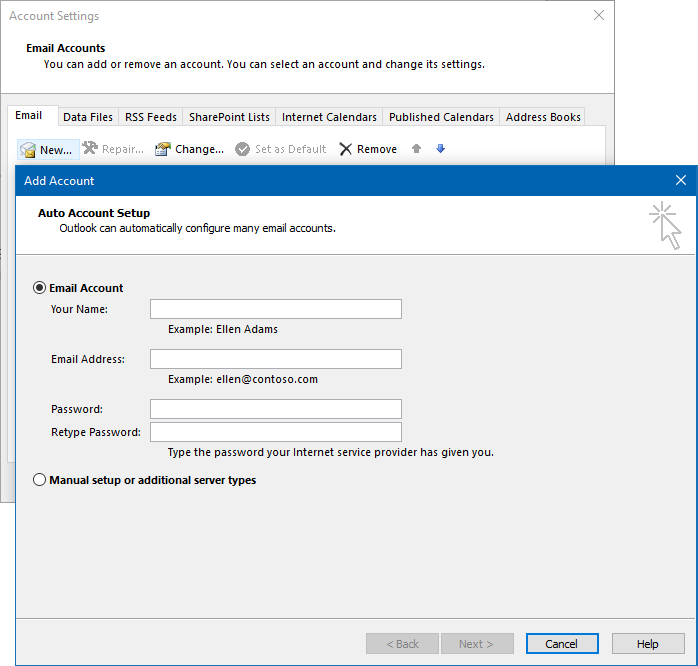
If modern Google sign-in is unavailable, an app password may work when two-step verification is enabled. Google says most users do not need one. Do not type your normal Google password into an Outlook prompt that cannot open Google's sign-in page.
Which Gmail folders should you export?
Choose between preserving your label organization and keeping a simpler message archive. Gmail can show one message under several labels, and Outlook exposes those labels as separate IMAP folders. Exporting every folder can therefore retain several copies of the same message.
For a simpler archive, examine All Mail as the main source and decide separately whether you need Spam and Trash. For a folder-organized archive, export the labels you need and expect overlap. Do not assume that the wizard's duplicate option will merge messages across differently named label folders.
Compare messages rather than Gmail's conversation totals: one conversation may contain several emails. Record a few known old and recent messages so you can find the same items in the finished PST.
Let the mailbox finish synchronizing
Wait for Outlook to download the full messages before exporting. An account can appear in the folder list while older messages or attachments are still only on the server.
- Expand the Gmail account and confirm that the labels or folders you need are visible.
- Make sure Gmail's All Mail folder is visible if you want it in the archive.
- In Gmail settings, open Forwarding and POP/IMAP → Folder size limits. Remove any message limit from folders you need in full; otherwise Outlook can report that synchronization is complete while older mail is omitted.
- In Outlook, choose Send/Receive All Folders and leave it open until synchronization finishes. Compare the required folders with Gmail, allowing for messages that have more than one label.
- Disconnect from the network and open an older message and its attachment. If either one cannot open, Outlook has not stored the full content locally.
Export the synchronized mail to PST
- In classic Outlook, choose File → Open & Export → Import/Export.
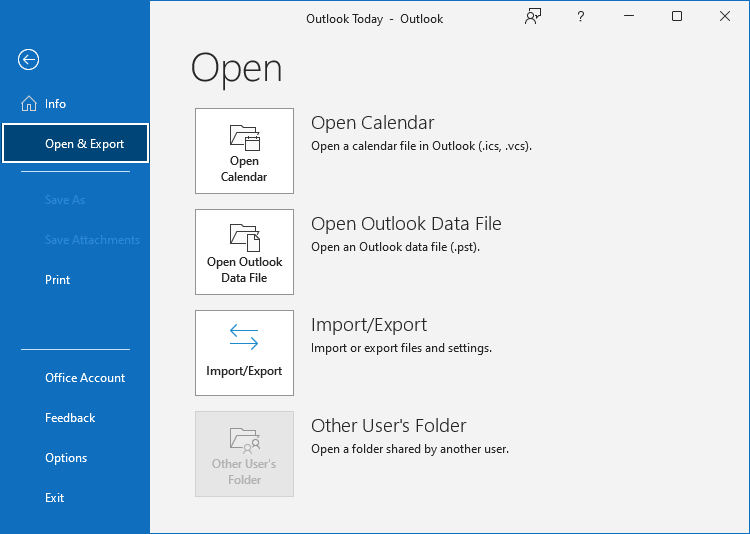
- Select Export to a file, then Outlook Data File (.pst).
- Select the Gmail account or the folder you want. Turn on Include subfolders when you want the folders below it too.
- Choose a local path and a new filename for the PST. If you deliberately export into an existing PST, review the duplicate-handling option; it is not a Gmail-label deduplication tool.
- Finish the wizard and wait for Outlook to complete the export.
To check the result, choose File → Open & Export → Open Outlook Data File and open the new PST. Confirm its main folders, then open an old message, a recent message, and several attachments. Keep this PST as a separate file if you want an archive rather than another synchronized view of Gmail.
Why are older Gmail messages missing from the PST?
A successful export means Outlook finished writing the data it had available; it does not prove that every server message was downloaded. Compare a missing item against Gmail first, then work through these checks.
| What happened | What to do |
|---|---|
| Older messages are absent | Check Gmail's IMAP folder-size limit and whether the required labels are exposed to the mail client, then synchronize again. |
| A whole folder is absent | Expand the source account and confirm that folder is available before exporting. Review the selected export root and Include subfolders. |
| An attachment opens only while online | Finish downloading the message before creating another PST. Test several messages offline, not only their subject lines. |
| Outlook keeps asking for a password | Retry current Google sign-in in an updated client; for a managed account, check whether the administrator allows the connection. |
| A retry adds more copies | Export to a new PST filename, compare the two archives, and retain the known-good source while investigating. |
Once corrected, export a new file and use the PST verification checklist. A single offline sample is a useful check, not proof that the whole mailbox is complete.
Does the PST keep syncing, and will export delete Gmail?
The exported PST is a separate file. New Gmail messages will not automatically appear in that archive, and exporting does not remove the source messages. The Gmail account that remains connected in Outlook still synchronizes: deleting mail there can affect Gmail.
To check the archive, open the named PST folder tree rather than the connected Gmail Inbox. Close Outlook before copying the finished PST to your backup drive. Retain both the live account and the earlier verified backup until you have checked the new file.
What if you have new Outlook?
New Outlook has a different interface. Microsoft now documents PST export under Settings → Files → Export in its export instructions. Check which accounts and folders your installed version offers. If your Gmail account is not offered there, use the classic Outlook steps in this guide.
New Outlook's PST features also do not replace classic Outlook for the MBOX converter. If you have a saved Takeout archive, check the converter requirements before choosing that route.
Contacts and calendars are separate
IMAP transfers mail, not a portable copy of Google Contacts or Google Calendar. For classic Outlook, export Google Contacts as Outlook CSV and calendars as iCalendar files, or include Contacts and Calendar as separate products in Google Takeout.
When this route is a poor fit
Use Google Takeout and MBOX conversion when you want an unchanged source archive before Outlook processes the mail, cannot keep the connection running until synchronization finishes, or already have a Takeout download. The MBOX to PST converter runs locally on Windows and requires supported classic Outlook on the same computer.
Primary sources
- Google: Gmail in another email client
- Microsoft: Export a PST
- Microsoft: Import Gmail contacts
- Microsoft: Outlook data files
FAQ
Should I connect Gmail to Outlook or use Google Takeout?
Connect Gmail to Outlook if you can sign in and wait for all your mail to download. Use Google Takeout if you want a separate mailbox backup first, or follow the MBOX conversion guide if you already have that download.
Do I need to turn on IMAP in Gmail?
Not for a personal Google Account. IMAP, the connection that lets Outlook synchronize Gmail, has been on by default with no off switch since January 2025. A work or school account may have additional administrator restrictions.
Why does Outlook reject my Gmail password?
Choose Sign in with Google rather than entering your usual password into an older account setup form. Update Outlook if that option is missing. An app password may be a fallback for older clients when Google’s two-step verification is enabled.
Why does the same Gmail message appear in several Outlook folders?
Gmail labels appear as folders in Outlook. A message with several labels can therefore appear in several folders. Keep this in mind when comparing message counts or exporting all folders.
Will connecting Gmail also copy my contacts and calendar?
This mail-sync method does not export contacts or calendars. Export them separately from Google Contacts and Google Calendar, or include those products in Google Takeout.
Will an exported PST receive new Gmail messages?
No. A PST export is a separate archive. The Gmail account in Outlook continues to synchronize, but the exported file does not automatically receive later messages. Create and verify a new export when you need an updated backup.
Keep reading
Related guides
Import an MBOX archive into a Microsoft 365 mailbox
Convert MBOX to PST, check your email in Outlook, then import it into your Microsoft 365 mailbox and confirm it arrived in webmail.
Move Yahoo Mail into Outlook and keep a separate backup
Connect Yahoo Mail to Outlook with current sign-in, check synchronization, export a separate PST in classic Outlook, and distinguish backup from a mailbox migration.
Restore Gmail messages from a Google Takeout MBOX backup
Import a Takeout MBOX into Thunderbird Local Folders, copy a test batch to Gmail through IMAP, and check restored messages, labels and duplicates in webmail.
Prefer a downloaded Gmail backup?
Use Google Takeout to save your mail as an MBOX archive, then convert a copy to PST.