Updated 17 September 2026 · 9 min read
Convert Google Takeout MBOX to Outlook PST
Extract the MBOX files from your Google Takeout download, convert them to PST on Windows, then open and check the archive in classic Outlook.
Google Takeout saves Gmail in MBOX, a format that stores many messages in a mailbox file. Classic Outlook cannot open MBOX directly, but it can open a converted PST data file. This workflow requires the Windows version of classic Outlook, identified by its File tab; new Outlook cannot run the converter.
When this is the right route
Use this route when you have a Google Takeout download or can still request one. It creates a file-based copy before Outlook is involved, so it also works when you no longer want Gmail connected to Outlook. If you have lost access to the account and did not save a Takeout export, recover the account first.
| What you have | Best next step |
|---|---|
| Takeout ZIP or TGZ files | Download every part, then extract the archive |
| Extracted Gmail MBOX files | Convert a working copy to PST |
| An active Gmail account and no need for an archive first | Synchronize Gmail into Outlook |
| No account access and no saved export | Recover account access before trying to export |
Keep the original Takeout download until you have opened and checked the PST.
What Google Takeout exports
Google Takeout creates a downloadable archive of the Google products you select. For Gmail, the messages are stored in one or more MBOX files. Each message can also contain an X-Gmail-Labels header that records its Gmail labels.
The downloaded archive and the mailbox files inside it have different formats:
- Takeout packages the download as ZIP or TGZ.
- A large download may arrive as several ZIP or TGZ parts.
- After you extract every part, the Gmail mail appears in one or more MBOX files.
The archive-size choice limits each ZIP or TGZ part. It does not set the size of the MBOX files inside or the PST you create later.
Export Gmail mail with Google Takeout
- Open Google Takeout and sign in to the Gmail account.
- Choose Deselect all, then select Mail.
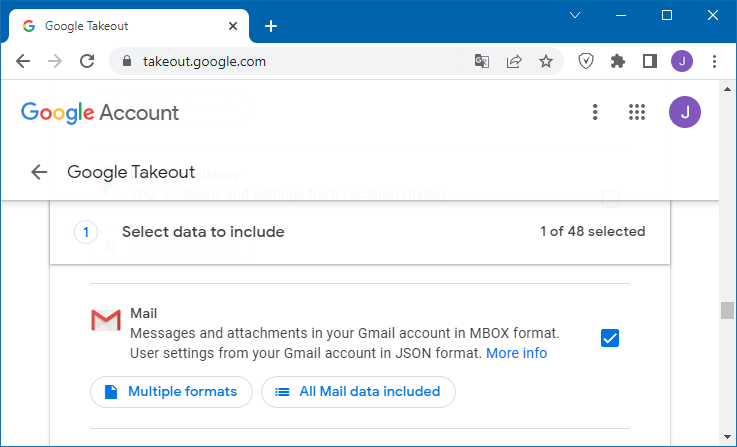
- Open All Mail data included if you want only selected Gmail labels. One message can belong to several labels.
- Choose Next step.
- Choose how Google should deliver the archive: by emailed download link, Google Drive, Dropbox, Microsoft OneDrive, or Box.
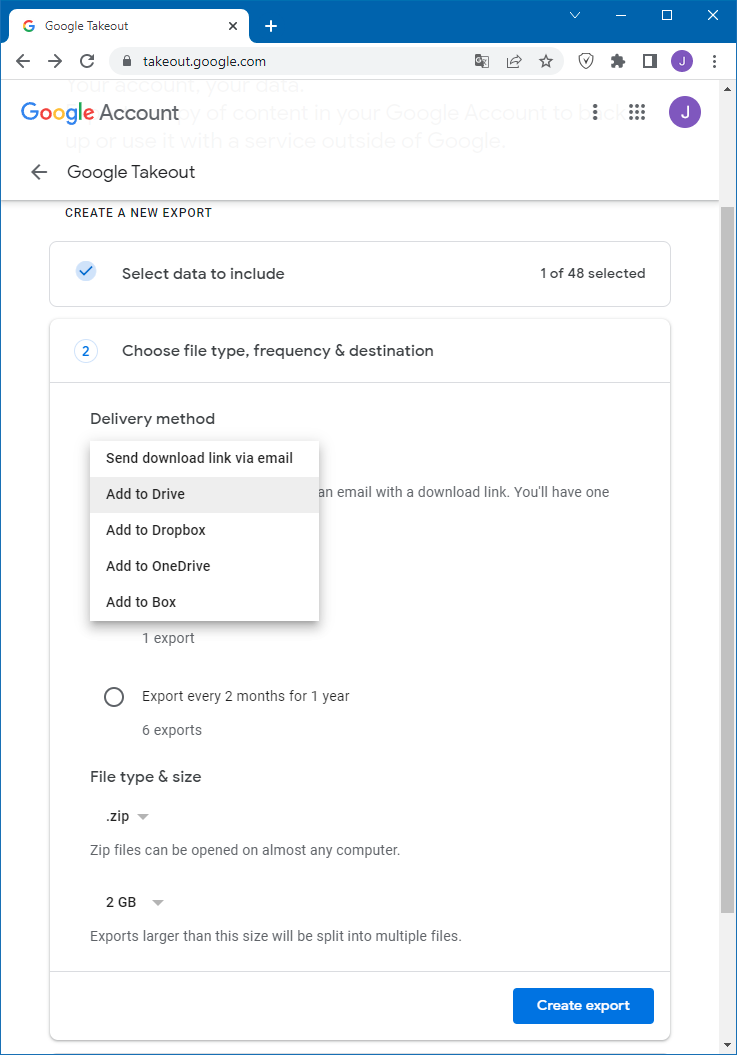
- Choose Export once unless you specifically need Google to create recurring exports.
- Choose ZIP or TGZ and a maximum size for each archive part. ZIP is easier to extract with built-in Windows tools; Google notes that TGZ may require additional software.
- Choose Create export and wait for Google's completion email.
Takeout downloads normally expire after about seven days and allow only a limited number of downloads. Save every part in the same download folder. Extract each part into its own subfolder so identically named files do not overwrite each other.
Prepare the extracted MBOX files
Open the extracted archive and find the Mail folder. Select the extracted MBOX files in the converter, not the original ZIP or TGZ download.
Before conversion:
- Make sure every archive part finished downloading.
- Extract all parts completely.
- Copy the extracted folder so you can convert the copy and keep the original unchanged.
- Make sure the Windows drive has room for both the extracted source and the new PST.
What if Takeout contains several files with the same name?
Extract each download part into its own clearly named folder first, such as part-01 and part-02. If Windows asks whether to replace an existing file, stop and inspect the two files instead of overwriting one. Build the working conversion folder only after you have accounted for every extracted MBOX file.
Do not join mailbox files with a text editor or rename a ZIP to .mbox. File extensions do not change the contents. Keep a short inventory of the source files and their sizes so you can compare it with the converter's report.
Can you convert Takeout to PST for free?
Google Takeout supplies the source archive without a converter purchase. PST conversion is a separate step: this utility has a limited trial and paid licenses, and it requires classic Outlook on Windows. An advertised free Takeout download does not mean unlimited PST conversion is included.
If you still have account access and already use classic Outlook, the Gmail IMAP export route can create a PST without this converter. It downloads the live account; it does not convert a saved Takeout file. A mailbox viewer that reads MBOX is also enough if you only need to inspect the archive and do not need PST.
Convert the archive to PST
Install the MBOX to PST converter. Our installer includes Convert MBOX to PST as part of ReliefJet Essentials. Open the utility and prepare the conversion:
- Select the working folder containing the extracted MBOX files.
- Choose a local path and a new filename for the destination PST.
- Enable Include subfolders when the source files are in several part folders or a folder tree.
- Choose the label, Internet-header, and size settings described below before starting.
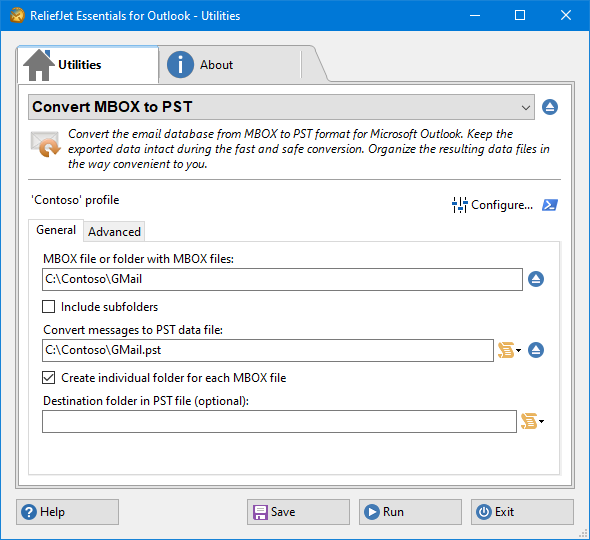
The converter reads the extracted files on your Windows computer and does not need your Gmail password. Supported classic Outlook must be installed on the same computer, although its window can remain closed while the standalone converter runs.
Decide how Gmail labels should appear
Choose the label option based on how you want to browse the mail in Outlook. A Gmail message can have several labels, while an Outlook message normally appears in one folder.
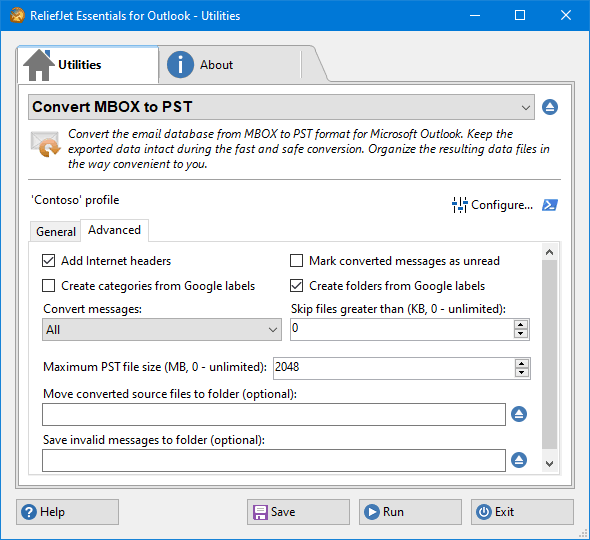
- Create folders from Google labels builds PST folders from the saved label information.
- Create categories from Google labels adds Outlook categories to the messages instead.
For example, a message labeled Invoices and 2025 can carry both categories on one Outlook item. Mapping those labels to separate folders may create multiple folder copies. Categories do not remove duplicates already present in the source files. Whichever option you choose, check a message that had multiple labels after conversion.
Keep Internet headers when they matter
Turn on Add Internet headers if you need the full delivery details used for troubleshooting or records. The converter also carries the message body, formatting, and attachments into the PST.
Use the two size fields correctly
Skip files greater than excludes an entire source MBOX file above the chosen size in KB. It does not filter individual messages or attachments. Set it to 0 if every MBOX file should be included.
Maximum PST file size starts a new destination PST when the current one reaches the chosen size in MB. Set it to 0 for no converter-imposed limit, or choose smaller files when a large mailbox would be easier to store and open in parts.
After checking these settings, click Run. Keep the conversion report and every output PST so you can verify the result.
Why is the PST incomplete, duplicated, or too large?
Use the point where the discrepancy first appears to decide what to retry. If the message is absent from the extracted source, changing Outlook settings cannot restore it. If it exists in the source but not the PST, inspect the conversion settings and report before requesting another Google export.
| Symptom | Next check |
|---|---|
| No MBOX files are available to select | Finish extracting the ZIP or TGZ and locate its Mail data. The converter needs mailbox files, not the download package. |
| Only some mail was converted | Check selected Takeout labels, every downloaded part, attachment filters, and Skip files greater than. |
| A message appears under several folders | Inspect its Gmail labels and your label-to-folder choice before deleting apparent duplicates. |
| The PST is larger than the download | A compressed ZIP size is not a predicted PST size. Folder copies from multiple labels can add more output. |
| One PST is inconveniently large | Use Maximum PST file size for a new conversion, and keep every output part. This setting does not reduce the source MBOX size. |
| Outlook cannot open the result | Check the opening instructions, output path, and conversion report before modifying or repairing the file. |
Conversion time depends on the source, message count, attachments, destination disk, and chosen label layout. Measure a representative test conversion if you need a time estimate; there is no reliable mailbox-size-only promise for your computer.
Verify the PST before removing the export
In classic Outlook, choose File → Open & Export → Open Outlook Data File and select the new PST. Confirm that the expected folders or categories appear, then open an old message, a recent message, a message with several labels, and a few attachments. Check names, dates, body formatting, and Internet headers if you enabled them.
Keep the Takeout download and extracted source until the checked PST has also been copied to separate storage. The full PST verification checklist covers larger migrations.
Does this import Gmail into Microsoft 365?
Creating a PST gives you a local Outlook archive. Opening it displays a separate folder tree; it does not upload that tree into an Exchange or Microsoft 365 mailbox. Importing or copying messages into a connected destination is another operation, with that mailbox's storage and organization rules. Check the local PST first, then decide whether you need a server migration at all.
If your destination is Gmail rather than Outlook, follow restoring a Takeout MBOX to Gmail. For a server mailbox after conversion, see importing the checked archive into Microsoft 365.
Primary sources
FAQ
What does Google Takeout download?
A ZIP or TGZ archive containing the Google data you selected. Extract it to find the Gmail MBOX files. If Google divides the download into several parts, download and extract all of them.
Can Outlook open a Takeout download directly?
No. Extract the downloaded archive, convert the MBOX files inside it to PST, then open that PST in classic Outlook. Outlook cannot open an MBOX file as an email archive.
What happens to Gmail labels?
You can turn the labels saved in the Gmail export into Outlook folders or categories. One message may have several labels, so check how those messages appear after conversion.
Does Outlook have to stay open during conversion?
No. Classic Outlook must be installed, but its window can be closed when you start the converter from the Windows Start menu. The new Outlook app cannot replace classic Outlook for this conversion.
Can I convert only some of my Gmail mail?
Yes. Select the labels you want when creating the Google Takeout export. In the converter, you can also choose messages with attachments or messages without attachments instead of converting all mail.
Why is the converted PST missing a large folder?
Check that every Takeout part was extracted and that the MBOX file was included. Then check message filters and Skip files greater than, which excludes whole source files. Keep the source export while investigating.
Keep reading
Related guides
Import an MBOX archive into a Microsoft 365 mailbox
Convert MBOX to PST, check your email in Outlook, then import it into your Microsoft 365 mailbox and confirm it arrived in webmail.
Move Yahoo Mail into Outlook and keep a separate backup
Connect Yahoo Mail to Outlook with current sign-in, check synchronization, export a separate PST in classic Outlook, and distinguish backup from a mailbox migration.
Restore Gmail messages from a Google Takeout MBOX backup
Import a Takeout MBOX into Thunderbird Local Folders, copy a test batch to Gmail through IMAP, and check restored messages, labels and duplicates in webmail.
Open your MBOX email in Outlook
Download the Windows converter and try it with a copy of your mailbox. You will need classic Outlook installed on the same computer.